Emacs
Table of Contents
1. Where to start
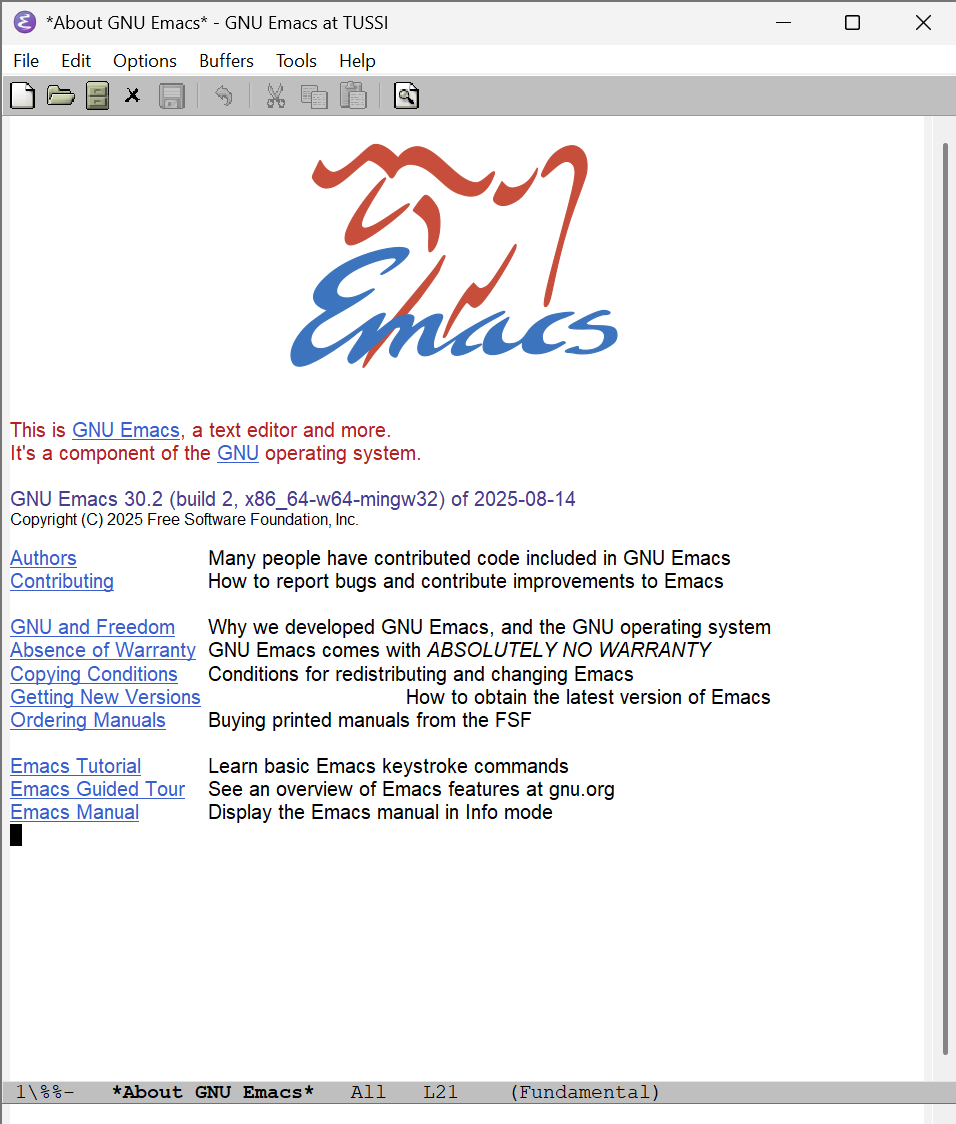
If this is your first time using Emacs please check the tutorial by clicking the link in the base startscreen or press Alt-x and type help-with-tutorial. It can also be opened with Ctrl-h a.
I will here start with some basics in Emacs, a small sane config (as the default Emacs can be ugly and not the best honestly, even if it has all built-in) and then my setup and use.
1.1. Basics in Emacs
The first any new Emacs user should do is the basic tutorial. One could compare this to vimtutor in vim. To launch this you can M-x help-with-tutorial this opens a tutorial page that tells the basic motions and actions. This can also be opened by pressing the link tutorial in the default startscreen on the bottom.
But first, I will use M- and C- a lot here for keybinds. M stands for meta and is alt, C is control.
Emacs is fast. External packages may be slow, so if Emacs is slow it's because you have made it slow.
1.2. How to configure Emacs
1.2.1. Where to set options
You may know that you can M-x and an option name to set it, but this will be just for this one session. This guide will cover a basic text based configuration, note that you can use a GUI as well. M-x customize opens the gui for setting options.
To set options that presist over time you need to write it to a configuration file. Valid locations for this is:
- $HOME/.Emacs
- $HOME/.Emacs.el
The old standard
- $HOME/.Emacs.d/init.el
The more modern standard, .el marks it as an Emacs lisp file
- $HOME/.config/Emacs/init.el
The XDG standard, Emacs 27 and newer
On windows operating systems you switch the $HOME with %APPDATA%
Note that you should only use one of these, and if Emacs detects a configuration file in a non XDG place the XDG one will not be loaded.
1.2.2. How to set options
Basic configuration is done in this fashion:
(setq variable t/nil)
(function 1/0)
(function option)
Some info before we start:
- setq sets a variable to a value
- 1/0 or t/nil just means 1 or 0, slash (/) here means or.
- For functions 1 enables it and 0 or -1 disables it
- For variables (setq …) use t for true and nil for false
Where you set an variable to true or false or disable or enable a function. The last sets a named value to a function, like a theme name or sorting pattern.
If you wish to read about a function in Emacs hit C-h f functionname. This brings you to the help page for said function. The most used help shortcuts are: f for function, k for keymap and x to describe a command. C-h ? shows all help options as well, this can be smart to just take a look at. All information about any function, keybind or anything at all in Emacs can be found in C-h . and then the thing you want documented, you can even jump to the source code for it as well.
Another useful keybind is C-g, this works as a stop everything button and stops the current action or keycombination. In something like C-x C-f (find file) ESC ESC ESC has this behaviour. If this does not work you can always restart Emacs.
1.2.3. Clean the UI
You may see the buttons on top of your Emacs on startup. This is not something most Emacs users use, and so they disable it.
This can be done by:
(setq inhibit-startup-screen t
      ring-bell-function 'ignore)
(tool-bar-mode -1)
(menu-bar-mode -1)
Note that this removes the UI buttons and makes you use the keybinds.
The options here do the following:
- inhibit-startup-screen t prevents the base startupscreen as a dashboard on launch
- ring-bell-function 'ignore disables the error bell every time an action does not do something
- tool-bar-mode -1 disables the tool bar on top of the screen
- menu-bar-mode -1 does the same for the menubar
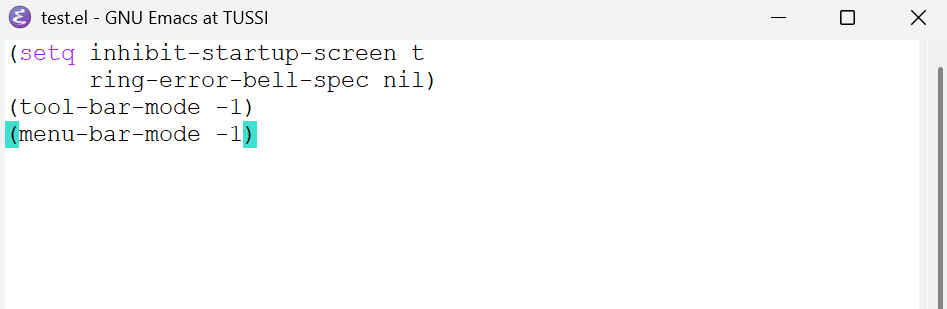
You now have a cleaner Emacs. Now, what are some other options you may want?
1.2.4. Theme
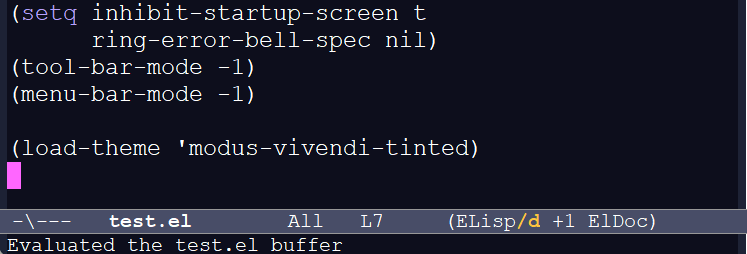
Many dislike the base theme of Emacs, but setting another is really simple. You may look at the different themes with M-x load-theme before settling down on one. And you can always change this later.
After you have found one you may like, for example modus-vivindi-tinted which is a soft dark theme that's built-in to Emacs.
You may set this as the theme with:
(load-theme 'modus-vivendi-tinted)
1.2.5. Musthave options
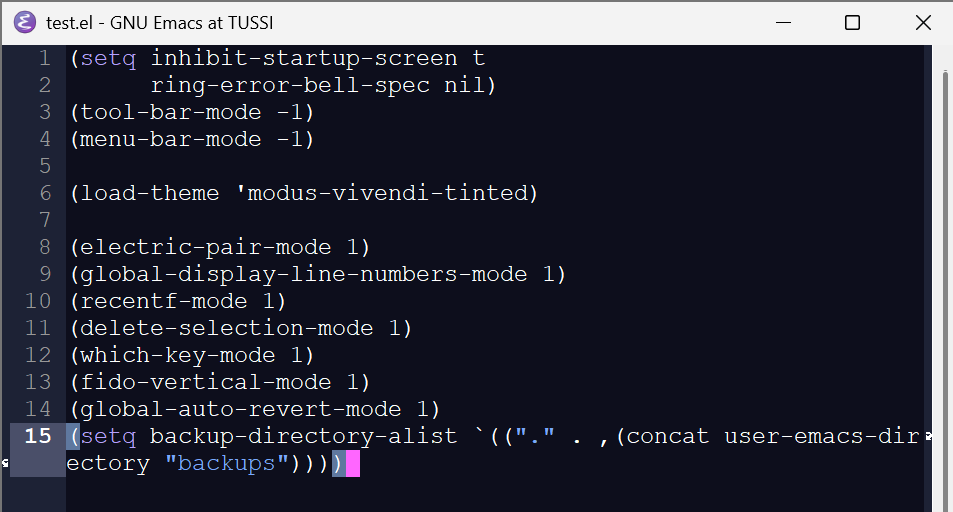
Here are some of the options I see as mandatory, and should have been enabled by default:
- electric pair mode is autopair for parentheses, quotes etc so it is balanced when you type and so that it skips the symbol if you type it when on it.
- global-display-line-numbers-mode lets you see which line number you are on in the file.
- recentf-mode saves which files you visit for quick navigation back
- delete-selection-mode deletes selected text when you start typing
- which-key-mode shows which keys you may hit for a valid function after one key. So for example ot shows M-g i … if you press M-g
- fido-vertical-mode a modern ido-mode, lists valid options when you do C-x C-f, M-x etc and can be sorted on a pattern, like fuzzy or full match
- global-auto-revert-mode auto refreshes files if changed outside of the opened buffer
- setq backup-directory-alist sets a directory for backup files, make sure this directory exists, or Emacs will complain
(electric-pair-mode 1)
(global-display-line-numbers-mode 1)
(recentf-mode 1)
(delete-selection-mode 1)
(which-key-mode 1)
(fido-vertical-mode 1)
(global-auto-revert-mode 1)
(setq backup-directory-alist `(("." . ,(concat user-Emacs-directory "backups"))))
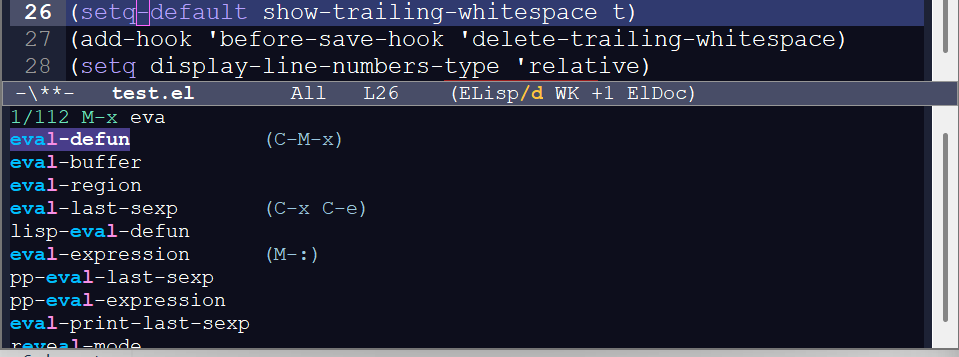
1.2.6. Some neat options
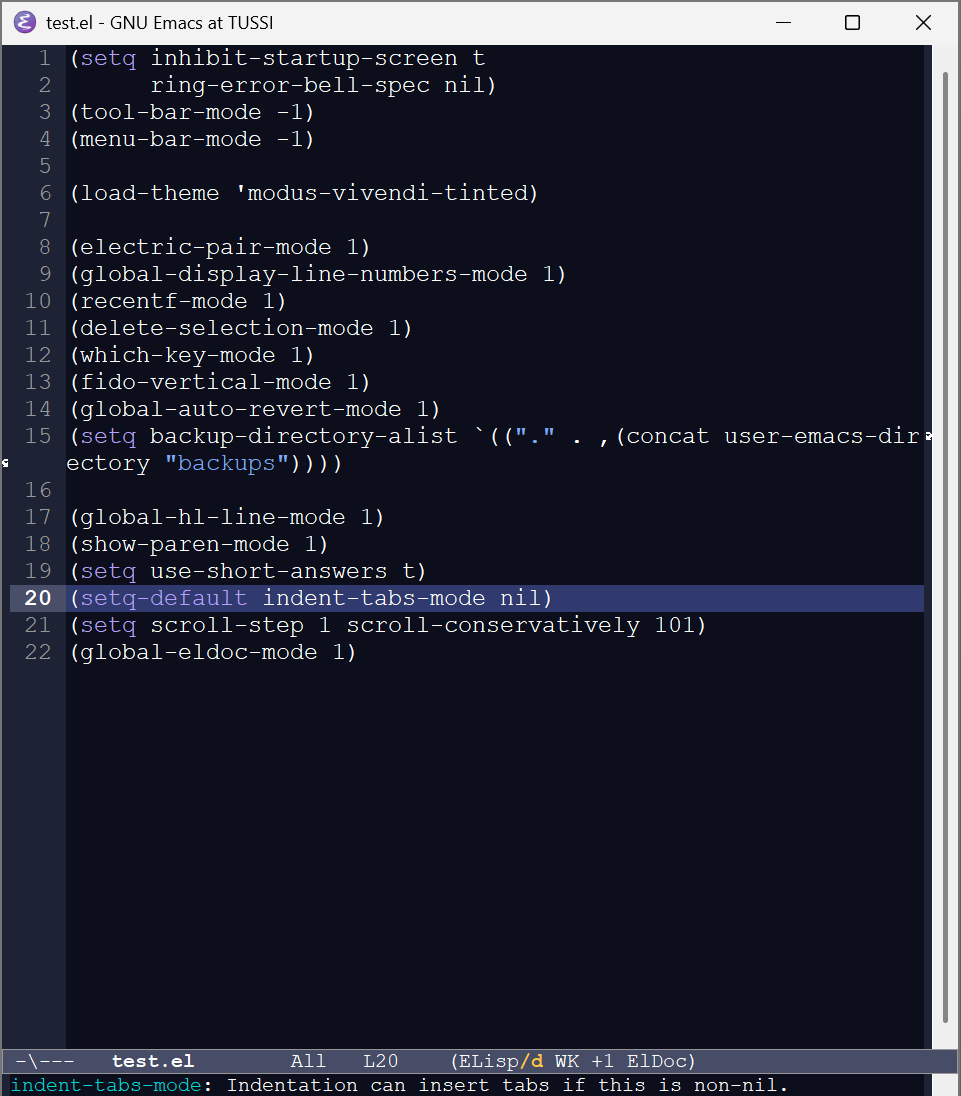
Here are some options I like, but not all think it's needed
- global-hl-line-mode highlights the line the cursor is at
- show-paren-mode show the matching parentheses to the one by the cursor
- setq use-short-answers t makes it so you can answer y or n instead of yes or no when Emacs prompt you
- indent-tabs-mode nil uses spaces instead of tabs for indentation
- setq scroll-step 1 scroll-conservatively 101 enables smooth scrolling down files instead of jumping for every half a page
- global-eldoc-mode gives a small description of whats under the cursor when Emacs know. This also work with LSPs.
(global-hl-line-mode 1)
(show-paren-mode 1)
(setq use-short-answers t)
(setq-default indent-tabs-mode nil)
(setq scroll-step 1 scroll-conservatively 101)
(global-eldoc-mode 1)
- savehist-mode saves what you type in M-x so that it's suggested as the first later
- save-place-mode saves where in the file you were last time you exited for later
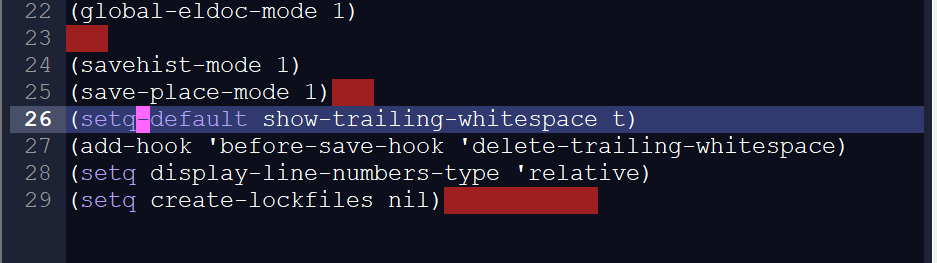
- show-trailing-whitespace shows trailing whitespace so that you don't leave it around everywhere
- add hook before save delete-trailing-whitespace makes it so trailing whitespace autoremoves itself when you save the file.
- display-line-numbers-type 'relative makes the line numbers display relative to current line, so instead of it being 101 102 etc it shows 101 as the current line then 1 2 3 etc above and bellow relative to the current line. Needs line numbers enabled as well.
- create-lockfiles nil makes it so Emacs doesnt make version save files everywhere in the filesystem
(savehist-mode 1)
(save-place-mode 1)
(setq-default show-trailing-whitespace t)
(add-hook 'before-save-hook 'delete-trailing-whitespace)
(setq display-line-numbers-type 'relative)
(setq create-lockfiles nil)
1.3. A sane start configuration
You now have a full small base and a little more sane configuration to use, expand and love.
Here is the full configuration from above in one block:
;;; SANE EMACS DEFAULT ;;;

;; disables startupscreen
(setq inhibit-startup-screen t
      ring-bell-function 'ignore
      use-short-answers t
      ;; smooth scrolling
      scroll-step 1
      scroll-conservatively 101
      display-line-numbers-type 'relative
      ;; prevents file system clutter
      create-lockfiles nil
      backup-directory-alist `(("." . ,(concat user-Emacs-directory "backups"))))

;; use spaces for indentation and clean whitespace
(setq-default indent-tabs-mode nil
              show-trailing-whitespace t)
(add-hook 'before-save-hook 'delete-trailing-whitespace)

;; A dark-theme
(load-theme 'modus-vivendi-tinted t)

;; options to enable for better behaviour
(electric-pair-mode 1)
(global-display-line-numbers-mode 1) ;; needed for relative line numbers
(recentf-mode 1)
(savehist-mode 1)
(save-place-mode 1)
(delete-selection-mode 1)
;; minibuffer (the section on the bottom) behaviour
(which-key-mode 1)
(fido-vertical-mode 1)
;; file navigation help
(global-auto-revert-mode 1)
(global-hl-line-mode 1)
(show-paren-mode 1)
(global-eldoc-mode 1)
;; clean the UI
(tool-bar-mode -1)
(menu-bar-mode -1)
2. Usefull keybinds
| M-g i | Jump to function, variable or heading decleration. |
| M-% | Replace text with text over larger region or file |
| M-. | Jump to definition |
| M-, | Return back to former place. |
| C-x | Start box select. |
| C-g | Clears selection/stops action. |
| C-x r t | Insert text to the area you selected earlier. |
| M-s o | Lists all matching terms and make them clickable. |
| C-M-n | Jump to next closing parentheses. |
| C-M-p | Same as above but backwards. |
| M-; | Toggle if line or region is commented. |
| C-t | Swap char under the cursor with the one before. |
| M-t | Swap word under cursor with previous. |
| C-x b | Switch to another open buffer. |
3. Powerfull tools
3.1. ORG-mode
Org-mode is amazing. That's the only words one can say about it.
It allows you, in plain text, to do anything from taking notes, markdown like syntax, but also with tables, codeblocks jumpable links and metadata and information like the author, date and time and more.
That alone may not sound that amazing, but after you have written this plain text you can, from one file, export that to ODT (open document format) files and so DOCX, LATEX, html, markdown, plain text, pdf or add it to a calendar or TODO list.
It allows you, from plain text to have codeblocks that can be executed, exported and highlighted, tables, math, documents, and organisation of events in one format, but with a lot of completely different outcomes.
I now use this for word documents, this blog post, longer emails, notes and documentation.
You can create headings with * and the more of them there are the further down a tree it gets. You leave it as the first character on the line.
Tables are created with the pipe, |. You type one pipe, a word and another pipe, then as many as you need in the row. Tab goes to the next section, and enter makes a new line.
- If you surround a word with _ it is underlines
- If you use * it will be bold
- If you use / it will be italic
Sourceblocks may be created with:
Org mode works out of the box, no need for a setup.
| #+BEGIN_SRC language
|   code
| #+END_SRC
(I use [|] pipes here so that END SRC in the block doesn't escape the block.)
Links are created with
[[url][display text]]
C-c C-e opens the export menu, which lets you choose what format to export the org file to.
3.2. VC-mode
This is a front-end for managing version control systems. Git being the most popular.
The prefix key for it is *C-x v *, where you so say what it should do.
Some that I personally use a lot is:
- C-x v v to commit changes
- C-x v d to open a pannel to manage and see changes in the whole repo. You may push P, mark for change m delete d view log L diff D and more from this pannel.
- C-x v P to push changes
- C-x v L to see commit log. Here you can expand the commits with enter, hit enter again in the body to see the diff from the commit. Hit enter again in that to jump to the file.
You can do a lot more with vc-mode, but this is what I do the most.
For vc-mode you need to be in a project under version control and set it up so it know what user it should do actions as. I just set up my ssh key for git and add this:
(setenv "SSH_ASKPASS" nil)
(setenv "GIT_ASKPASS" nil)
Then it know's what to do when i commit or push to the remote server.
3.3. DIRED
The file manager.
Dired displays the file system in the same format as ls -la does.
You may enter files or directories, change names (R), move files (M), delete files (d/D), + to create a directory, (C) to copy a file and more.
You can also do shell actions on the item the cursor is over with &/!
Dired needs no setup, it's out of the box.
3.4. Eshell
Eshell is the Emacs built-in terminal emulator.
As it is written in Emacs lisp it works on windows and unix-like operating systems.
The reason I use it is as it has all you need of utils, and written in elisp, so it's the same across different operating systems.
It's also in Emacs, and so you can do any normal Emacs motion and operation on the buffer.
Eshell is out of the box, you can bind it to a key, I have it at C-c g t.
3.5. Compile-mode
Compile-mode is one feature I could kill for, but luckily I don't have to, as it's right here.
It allows you to run external commands, like cc, csc, cargo, make or grep inside of Emacs, and if the command returns a pointer to a file that becomes a clickable link that jumps you to that place.
This can be useful with errors, so that you can jump straight to it instead of having to navigate there yourself.
Same as above, no need for extra setup.
3.6. Rmail
Rmail is an email client. This is one I use a lot, as it allows me to read and send and manage my emails in Emacs.
- M-x rmail to open
- m to write a new email
- C-c C-c to send it
For it to work you need to set it up with an account, imap and smpt for modern email. I would recommend in a gpg encrypted .authinfo file.
For rmail you need some things set up.
First, enable imap for your email, for me that will be going on yahoo.com settings and enabling it and getting a password to use for external email management.
After that I add:
- machine smtp.mail.yahoo.com login email@email.com port 465 password THEPASSWORD
- machine imap.mail.yahoo.com login email@email.com port 993 password THEPASSWORD
to my ~/.authinfo file before i gpg encrypt it.
You so need to tell emacs where to look for the email, here is a template you can use:
(setq user-full-name "NAME"
      user-mail-address "email@email.com")

(setq send-mail-function 'smtpmail-send-it
      smtpmail-smtp-server "smtp.mail.{your email, for me yahoo}.com"
      smtpmail-smtp-service 465
      smtpmail-stream-type 'ssl)

(setq rmail-movemail-program "/usr/local/bin/movemail" ;; needs to be gnu movemail here for best support
      rmail-primary-inbox-list '("imaps://email%40email.com@imap.mail.{emailprovider}.com:993"))

(setq auth-sources '("~/.authinfo.gpg"))
Now just M-x rmail and enter the gpg password you used to encrypt the authinfo file. Then rmail is set up. m for new email to doubble check.
3.7. ERC
This is maybe not one everyone needs, but ERC is a good IRC client that comnes with Emacs. It's nothing more, and nothing less.
This is a minimal setup for irc.
You just need this if you want to chat on a irc chat with login requirement, like emacs.
In .authinfo.gpg you also need:
- machine irc.libera.chat login USERNAME password PASSWORD
Then in your emacs config add:
(setq erc-nick "User_Nick"
      erc-autojoin-channels-alist '(("libera.chat" "#emacs")))

(setq erc-use-auth-source-for-nickserv-password t) ;; checks authinfo.gpg for login
And that's all.
4. My personal setup
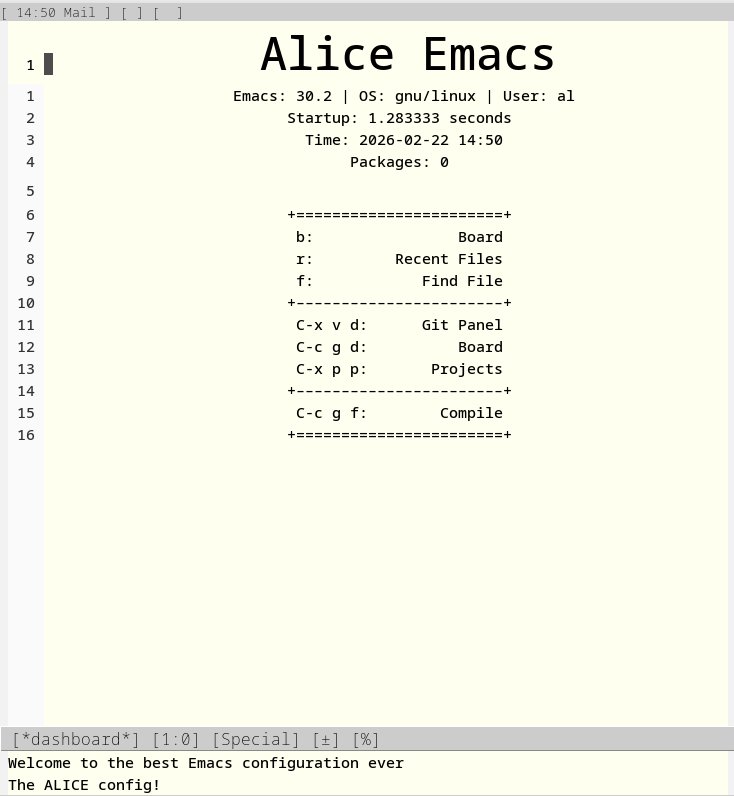 I have a setup of my own too of course, which may be found here.
It is all withouth any external packages, or, i have htmlize to get highlighting in codeblocks when i export org to html, which can be found under mode in the repo.
I have one way I like my things. Make it work, don't be in my way, and always be there.
And so, I made a minimal theme that's just that. It show's what's important, but doesn't overhighlight anything so that it's easy to see what's actually highlighted.
I also do my email, writing, terminal usage and more in Emacs, as this makes it always easy to have on hand no matter what I do. Do I need to reply to someone while I'm writing? No need to even open a browser.
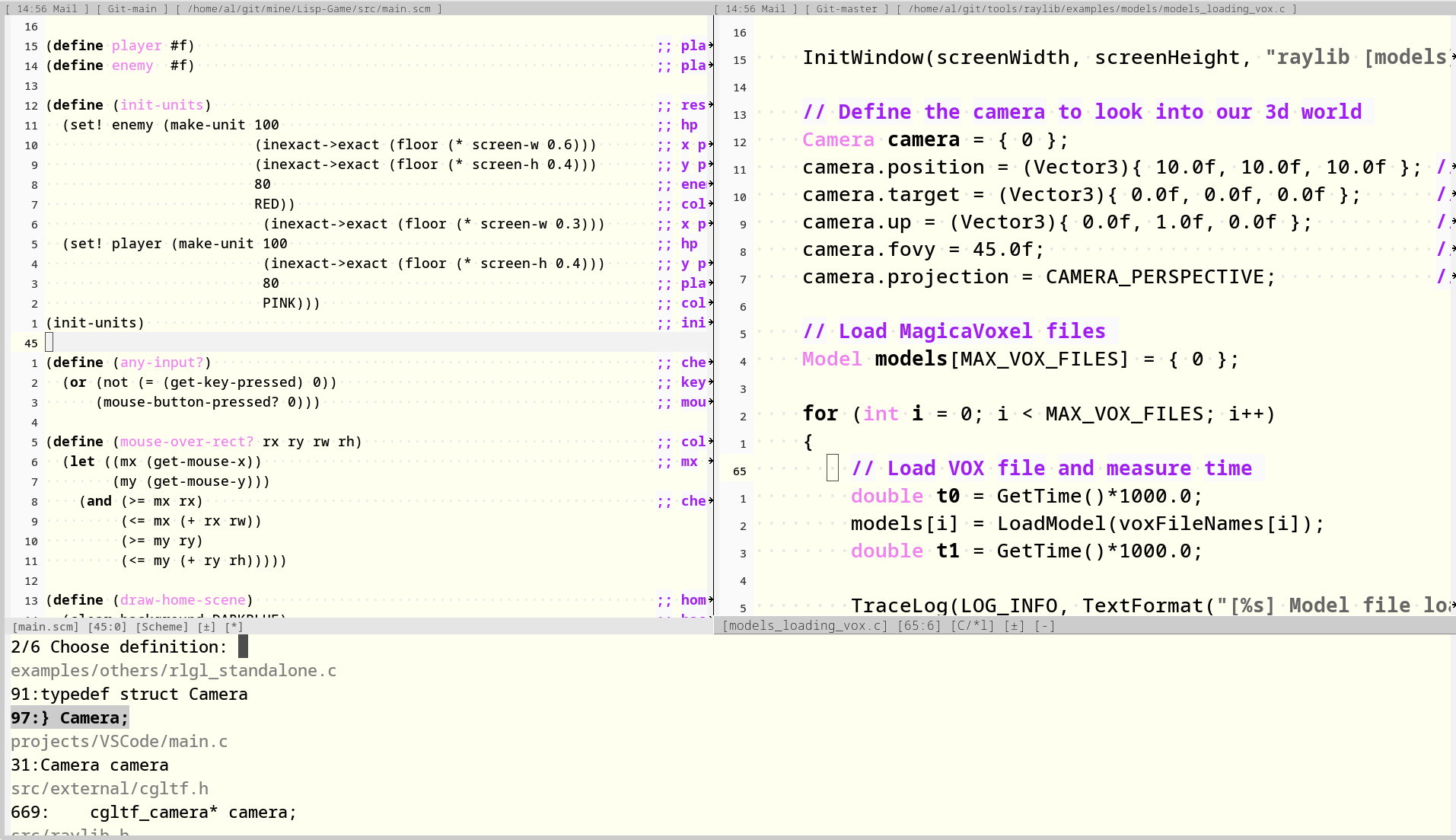
For my side projects, that often is programming I use ctags and imenu to jump around, and a proper Emacs major-mode. This is as I have had problems with treesitter in the past, and just generally avoid it now if I can. LSPs can also be more distracting and resource heavy that useful, so I have stopped using those.
A session may start with that i open Emacs, go the the project and the file I wish to work with, hit M-. or M-g i to jump somewhere and start. Then I use C-c f for compile mode, look at the error and jump there and commit the changes I did.
This is all within one short keycombination, and so I never have to think about other things, leave the tool or close something, and as Emacs treats everything like a buffer I can just jump back whenever I want, as it is still open in the background.
4.1. Functions that I "need"
Move line up or down:
(defun my/move-line-up ()
  "Moves line under cursor up one line"
  (interactive)
  (transpose-lines 1)
  (forward-line -2))

(defun my/move-line-down ()
  "moves line under cursor down one line"
  (interactive)
  (forward-line 1)
  (transpose-lines 1)
  (forward-line -1))
Recompile etags:
(defun my/recompile-etags ()
  "a command to generate etags 'TAGS' file for the current projects"
  (interactive)
  (let ((default-directory (vc-root-dir)))
    (call-process-shell-command
     "find . -type f \\( -name '*.el' -o -name '*.[ch]' -o -name '*.scm' \\) -print0 | xargs -0 etags -o TAGS")))
Visual Block Mode:
(defun my/visual-block-mode ()
  "something like vims visual block to a keybind, so i can edit multiple lines at once for the same thing"
  (interactive)
  (unless cua-mode   (cua-mode 1))
  (cua-rectangle-mark-mode 1))

(global-set-key (kbd "C-|")
                'my/visual-block-mode)
My Push:
(defun my/push ()
  "git push so it works on my machine and setup"
  (interactive)
  (let ((display-buffer-alist
         '(("\\*Async Shell Command\\*"
            display-buffer-no-window))))
    (shell-command "git push &"))
  (message "Pushing..."))
As my setup doesn't always like the one that comes with VC-mode.
I also have many more, but I cannot just have it all here. Go here to check my completion setup, some more functions, the dasboard, my theme and more.
5. Table of content and information
Table of Contents
Proprietary means malware for the masses